
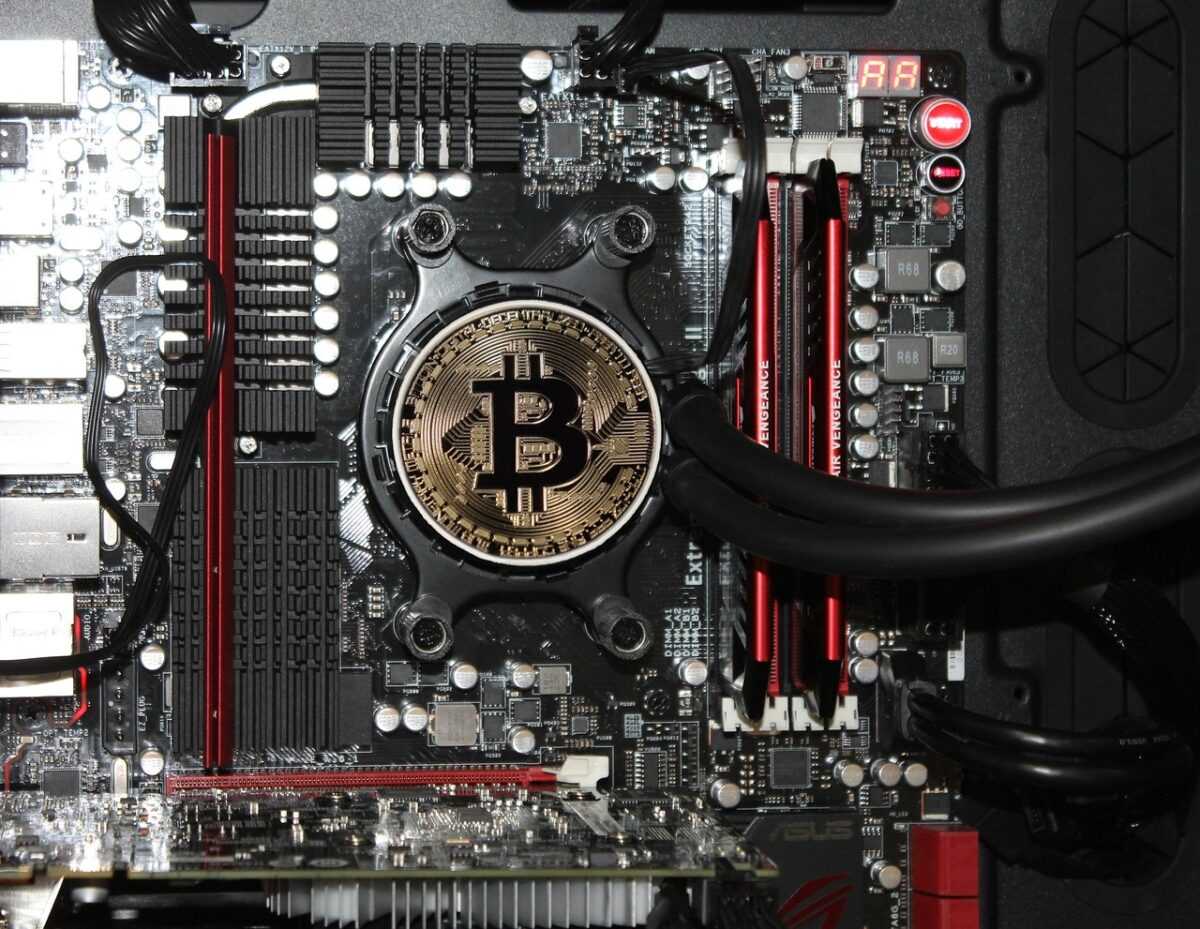
This guide provides a detailed walkthrough for the installation and setup of mining BIOS and firmware, ensuring optimal hardware performance and security. Follow precise instructions on flashing BIOS and updating firmware to unlock higher hash rates while maintaining system stability on your mining rig.
Our tutorial covers every stage: from backing up existing BIOS versions, selecting compatible firmware, to executing the flashing process safely. The detailed guide outlines essential settings adjustments tuned specifically for mining applications, reducing power consumption and avoiding hardware throttling.
With focus on proven real-world configurations and recent market developments, this walkthrough addresses both AMD and Nvidia GPUs, reflecting differences in their BIOS structures. Security protocols are emphasized to prevent firmware tampering or bricking, which can lead to costly downtime and lost revenue.
Whether implementing modifications for improved hash rates or applying firmware fixes for compatibility, these instructions support miners targeting arbitrage opportunities in volatile crypto markets. Regular BIOS and firmware updates form a critical part of maintaining mining efficiency and adapting to evolving network conditions.
Prepare Hardware and Backup
Ensure all hardware components targeted for BIOS and firmware installation are fully tested for stability and compatibility prior to any modification. Verify power supply reliability and adequate cooling, as unstable voltage or thermal throttling can cause irreversible damage during the flashing process. Disconnect all non-essential peripherals to minimize the risk of interference or power drain.
Execute a full backup of existing BIOS and firmware images using manufacturer-provided tools or trusted third-party utilities. Save backup files to multiple secure locations, including offline storage, to guarantee recovery options if updates fail. Document current hardware configurations and BIOS settings to facilitate restoration or troubleshooting.
Follow the detailed instructions within the comprehensive guide to confirm hardware firmware readiness. This includes checking motherboard model-specific firmware revisions, assessing previous custom mining BIOS versions, and ensuring the installer matches component specifications. Use the walkthrough as a reference for identifying firmware update files and appropriate flashing methods tailored for mining rigs.
Establish a controlled environment for installation with uninterrupted power supply systems and network isolation if possible. This setup reduces the chances of corruption or external conflicts during BIOS and firmware updates critical for mining optimisations. Validate each step according to the tutorial to uphold installation integrity and prevent bricking hardware.
Flash Mining BIOS Safely
To flash your mining BIOS safely, ensure the mining rig is connected to an uninterruptible power supply (UPS) to prevent power loss during the process. Use only the official BIOS firmware supplied by the GPU or rig manufacturer to avoid bricking the hardware. Download the firmware and flashing utilities onto a trusted device for the installation phase, verifying all files with checksums or digital signatures when available.
Follow a comprehensive step-by-step guide that details each stage of the BIOS update. Begin by shutting down the system, removing unnecessary peripherals, and resetting BIOS settings to default. Access the BIOS flash tool in your operating system or through a bootable USB environment designed specifically for firmware updates. Always execute the BIOS flashing commands strictly according to the provided instructions in the tutorial to maintain the rig’s stability.
Key Practices During BIOS Flashing
Before initiating, record the current BIOS settings, as they often contain optimized parameters crucial for mining performance. If the flashing utility supports it, create a backup of your existing BIOS. Avoid interrupting the process once started; even a brief power outage or system freeze may corrupt the BIOS, leading to costly repairs or component replacement.
Post-Installation Setup and Validation
After successful flashing, reboot the rig and immediately enter BIOS setup to configure or reinstate settings tailored for mining efficiency. Verify the firmware version to confirm the update and run diagnostic tools included in your guide to ensure stability. Monitor mining performance and temperatures for several hours; abnormalities could indicate improper installation or incompatibility requiring re-flashing or firmware revision.
Verify Firmware and Optimize Settings
Immediately after flashing your mining BIOS, confirm the firmware version is correctly updated by accessing the BIOS setup utility. Cross-check the displayed firmware build against the detailed instructions provided in the installation tutorial to ensure synchronization. Use tools such as GPU-Z or HWINFO to verify firmware details at the OS level, validating the BIOS revision and device IDs to confirm the flash was successful without corruption.
For setting up optimal mining performance, methodically adjust voltage and frequency parameters based on the updated firmware capabilities. Refer to comprehensive configuration guides that include empirically tested values specific to your GPU model and mining algorithm–for example, targeting an undervolt of 850mV at 1400MHz core clock can reduce power consumption while maintaining hash rate. Incorporate fan curve adjustments to prevent overheating during prolonged workloads, balancing thermal performance with noise levels. This approach ensures system stability while maximizing efficiency.
Run Stability and Efficiency Tests
After setting up, run a series of stress tests and mining benchmarks using your updated BIOS to monitor hardware behavior under load. Tools like Claymore or PhoenixMiner can track hash rate fluctuations and mining errors, indicating whether further fine-tuning is needed. Monitor card temperatures and power draw closely against the baseline established in the installation guide. A well-optimized mining setup should maintain stable hash rates with a 5–10% power reduction compared to stock settings. Document your final configurations for replicability and troubleshooting.
Security Measures Post-Installation
Ensure the mining rig’s firmware integrity by enabling BIOS write protection features if supported. Lock down BIOS settings to prevent unauthorized modifications, reducing the risk of malware injecting compromised firmware. Keep a backup of the original and updated BIOS files per the instructions, storing them securely offline. Regularly check firmware updates from trusted sources and follow this detailed walkthrough to apply patches or improvements without disrupting your mining operation.